
Ask any hiring manager what a fresher should know, and SQL appears on the list again and again. Developers use it to read and save data. Testers use it to verify what the application stored. Analysts live in it. Support engineers use it to investigate problems. And interviewers love it, because a few short queries reveal very quickly whether you have actually practised or only watched tutorials.
This guide gives you 15 SQL queries for freshers that cover almost everything asked in fresher interviews and used in real entry-level work. Every query comes with a ready-to-run sample database, the exact output you should see, and a note on the mistake most beginners make.
How to use it: do not just read the queries. Create the sample database in the next section, type each query yourself, check your output against the one shown, and then change the query to answer a slightly different question. That is how SQL sticks.
What This Guide Covers
• A copy-and-paste practice database you can set up in two minutes
• How a database actually reads your query, and why it matters
• 15 queries in five groups: basics, summaries, joins, interview favourites and conditional logic
• Safe ways to INSERT, UPDATE and DELETE
• Common beginner mistakes, quick interview questions and a 7-day practice plan
Set Up Your Practice Database
You can use MySQL, PostgreSQL or SQLite. All three are free to install, and the basic queries in this guide work the same in each. Where a feature differs, the guide tells you. The sample data is fictional.
We use two tables. employees stores people, and departments stores the teams they belong to. Each employee has a dept_id that links to a department.
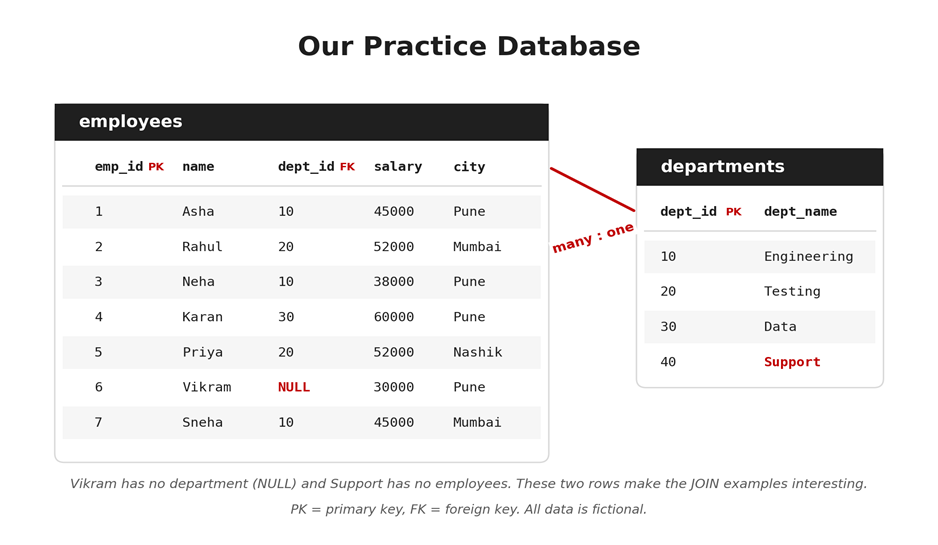
Run this script once to create and fill both tables:
CREATE TABLE departments (
dept_id INT PRIMARY KEY,
dept_name VARCHAR(50)
);
CREATE TABLE employees (
emp_id INT PRIMARY KEY,
name VARCHAR(50),
dept_id INT,
salary INT,
city VARCHAR(50),
FOREIGN KEY (dept_id) REFERENCES departments(dept_id)
);
INSERT INTO departments VALUES
(10, 'Engineering'), (20, 'Testing'), (30, 'Data'), (40, 'Support');
INSERT INTO employees VALUES
(1, 'Asha', 10, 45000, 'Pune'),
(2, 'Rahul', 20, 52000, 'Mumbai'),
(3, 'Neha', 10, 38000, 'Pune'),
(4, 'Karan', 30, 60000, 'Pune'),
(5, 'Priya', 20, 52000, 'Nashik'),
(6, 'Vikram', NULL, 30000, 'Pune'),
(7, 'Sneha', 10, 45000, 'Mumbai');
|
Good to know before you start Row order: SQL does not guarantee the order of rows unless you use ORDER BY. Your output may appear in a different order from the examples, and that is fine. Dialects: LIMIT works in MySQL, PostgreSQL and SQLite. SQL Server uses TOP, and Oracle (and standard SQL) uses FETCH FIRST. Window functions (Query 15) need MySQL 8 or later. Semicolons: end each statement with a semicolon. |
How a Database Reads Your Query
You write SELECT first, but the database does not run it first. Understanding the real order explains most beginner errors, such as why you cannot use a total inside WHERE, or why HAVING exists at all.
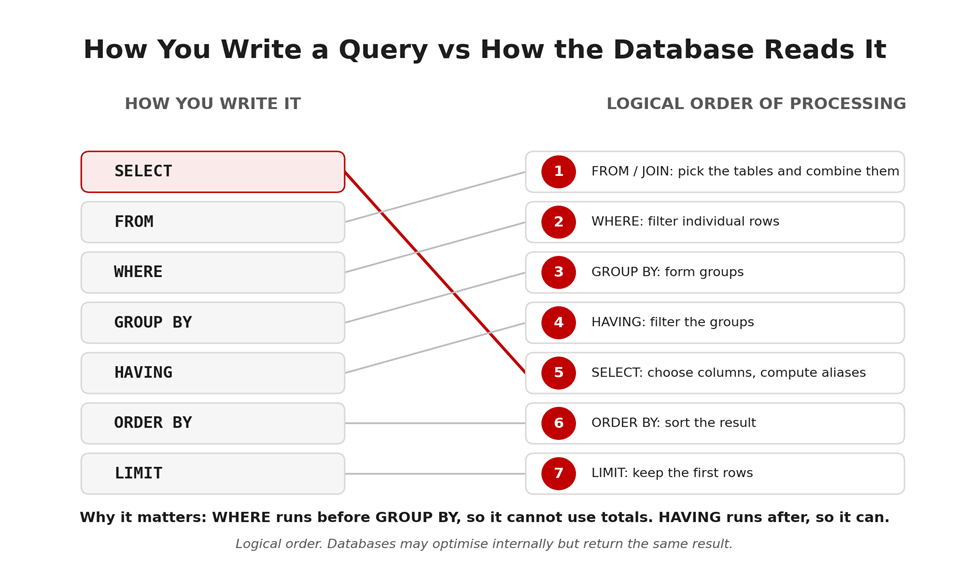
The database first finds the tables and joins them, then filters rows with WHERE, forms groups with GROUP BY, filters those groups with HAVING, and only then picks the columns in SELECT, sorts them with ORDER BY and trims the result with LIMIT. Keep this order in mind as you work through the queries.
Part 1: The Basics (Queries 1 to 5)
Query 1: Select Specific Columns
Use SELECT to choose which columns you want. Avoid SELECT * in real work, because it returns every column and can slow things down.
SELECT name, salary
FROM employees;
Output:
name | salary
-------+-------
Asha | 45000
Rahul | 52000
Neha | 38000
Karan | 60000
Priya | 52000
Vikram | 30000
Sneha | 45000
(7 rows)
Interview tip: be ready to explain why SELECT * is discouraged: it returns unnecessary data, it breaks when columns change, and it hides what the query really needs.
Query 2: Filter Rows With WHERE
WHERE keeps only the rows that match a condition. Text values go in single quotes.
SELECT name, salary
FROM employees
WHERE city = 'Pune';
Output:
name | salary
-------+-------
Asha | 45000
Neha | 38000
Karan | 60000
Vikram | 30000
(4 rows)
Common mistake: writing WHERE city = Pune without quotes. SQL then looks for a column called Pune and returns an error.
Query 3: Sort Results and Limit the Rows
ORDER BY sorts the result, and DESC reverses the order. LIMIT keeps only the first few rows. Here we find the three highest salaries. The second sort column (name) makes the order predictable when two salaries are equal.
SELECT name, salary
FROM employees
ORDER BY salary DESC, name
LIMIT 3;
Output:
name | salary
------+-------
Karan | 60000
Priya | 52000
Rahul | 52000
(3 rows)
Dialect note: in SQL Server, write SELECT TOP 3 name, salary FROM employees ORDER BY salary DESC; instead.
Query 4: Remove Duplicates With DISTINCT
DISTINCT returns each value only once. This answers questions like "Which cities do our employees live in?"
SELECT DISTINCT city
FROM employees;
Output (row order may vary):
city
------
Pune
Mumbai
Nashik
(3 rows)
Query 5: Combine Conditions With AND, IN, BETWEEN and LIKE
Real questions usually need more than one condition. AND requires both conditions to be true. IN checks against a list. BETWEEN includes both end values. LIKE searches for patterns, where % stands for any number of characters.
SELECT name, city, salary
FROM employees
WHERE city IN ('Pune', 'Mumbai')
AND salary BETWEEN 40000 AND 55000;
Output:
name | city | salary
------+--------+-------
Asha | Pune | 45000
Rahul | Mumbai | 52000
Sneha | Mumbai | 45000
(3 rows)
And a pattern search for names that start with the letter A:
SELECT name
FROM employees
WHERE name LIKE 'A%';
Output:
name
----
Asha
(1 row)
Common mistake: mixing AND and OR without brackets. Use brackets to make your intention clear, for example WHERE (city = 'Pune' OR city = 'Nashik') AND salary > 40000.
Part 2: Summarising Data (Queries 6 to 8)
Query 6: Count, Sum, Average, Minimum and Maximum
Aggregate functions turn many rows into a single answer. You will use these constantly in reports and interviews.
SELECT COUNT(*) AS total_employees,
SUM(salary) AS total_salary,
AVG(salary) AS average_salary,
MIN(salary) AS lowest_salary,
MAX(salary) AS highest_salary
FROM employees;
Output:
total_employees | total_salary | average_salary | lowest_salary | highest_salary
----------------+--------------+----------------+---------------+---------------
7 | 322000 | 46000 | 30000 | 60000
(1 row)
Interview tip: COUNT(*) counts all rows, but COUNT(dept_id) counts only rows where dept_id is not NULL. On our data, COUNT(dept_id) returns 6, not 7, because Vikram has no department.
Query 7: Group Rows With GROUP BY
GROUP BY splits rows into groups so that an aggregate is calculated for each group. Here we count employees and find the average salary per department.
SELECT dept_id,
COUNT(*) AS employee_count,
ROUND(AVG(salary), 2) AS average_salary
FROM employees
GROUP BY dept_id;
Output (row order may vary):
dept_id | employee_count | average_salary
--------+----------------+---------------
10 | 3 | 42666.67
20 | 2 | 52000.00
30 | 1 | 60000.00
NULL | 1 | 30000.00
(4 rows)
Common mistake: selecting a column that is neither in GROUP BY nor inside an aggregate function. Most databases reject it. Notice also that Vikram forms his own group, because NULL values are grouped together.
Query 8: Filter Groups With HAVING
WHERE filters rows before grouping, so it cannot see group totals. HAVING filters the groups after they are formed. Here we keep only departments whose average salary is above 45,000.
SELECT dept_id,
ROUND(AVG(salary), 2) AS average_salary
FROM employees
GROUP BY dept_id
HAVING AVG(salary) > 45000;
Output:
dept_id | average_salary
--------+---------------
20 | 52000.00
30 | 60000.00
(2 rows)
Interview tip: this is the classic "WHERE vs HAVING" answer. WHERE filters individual rows before grouping; HAVING filters groups after aggregation.
Part 3: Combining Tables With JOINs (Queries 9 and 10)
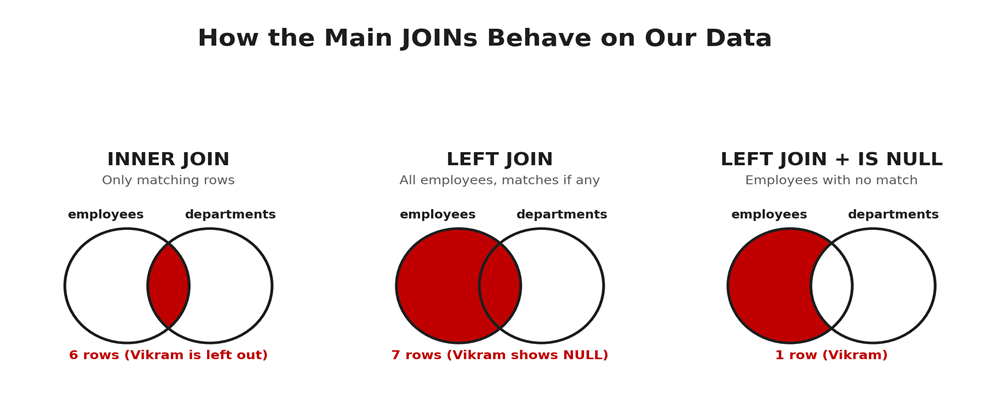
Real databases split information across tables. A JOIN brings it back together using a matching column. These two queries cover most JOIN questions in fresher interviews.
Query 9: INNER JOIN
INNER JOIN returns only rows that have a match in both tables. Here we list each employee with their department name.
SELECT e.name, d.dept_name
FROM employees e
INNER JOIN departments d
ON e.dept_id = d.dept_id
ORDER BY e.emp_id;
Output:
name | dept_name
------+------------
Asha | Engineering
Rahul | Testing
Neha | Engineering
Karan | Data
Priya | Testing
Sneha | Engineering
(6 rows)
What to notice: Vikram is missing, because he has no department and therefore no match. Also notice the short names e and d (aliases), which make longer queries easier to read.
Common mistake: forgetting the ON condition. Without it, every employee is paired with every department, producing a huge, meaningless result.
Query 10: LEFT JOIN to Find Missing Matches
LEFT JOIN keeps every row from the left table and fills unmatched columns with NULL. Combined with IS NULL, it answers a very common question: which rows have no match? Here we find departments with no employees.
SELECT d.dept_name
FROM departments d
LEFT JOIN employees e
ON d.dept_id = e.dept_id
WHERE e.emp_id IS NULL;
Output:
dept_name
---------
Support
(1 row)
Swap the two tables and you can find employees without a department instead:
SELECT e.name
FROM employees e
LEFT JOIN departments d
ON e.dept_id = d.dept_id
WHERE d.dept_id IS NULL;
Output:
name
------
Vikram
(1 row)
Common mistake: using = NULL instead of IS NULL. NULL means "unknown", so nothing is ever equal to it. Always write IS NULL or IS NOT NULL.
Part 4: Interview Favourites (Queries 11 to 13)
Query 11: Subquery for Above-Average Values
A subquery is a query inside another query. The inner query runs first and its result feeds the outer one. Here we find employees who earn more than the company average (46,000, from Query 6).
SELECT name, salary
FROM employees
WHERE salary > (SELECT AVG(salary) FROM employees);
Output:
name | salary
------+-------
Rahul | 52000
Karan | 60000
Priya | 52000
(3 rows)
Interview tip: explain that you cannot write WHERE salary > AVG(salary) directly, because WHERE runs before any aggregation. The subquery solves that.
Query 12: The Second Highest Salary
This is probably the most asked SQL question for freshers. The simplest method takes the highest salary that is lower than the overall maximum.
SELECT MAX(salary) AS second_highest
FROM employees
WHERE salary < (SELECT MAX(salary) FROM employees);
Output:
second_highest
--------------
52000
(1 row)
A second approach sorts the distinct salaries and skips the first one. Using DISTINCT matters, because two people earn 52,000 and you want the second highest value, not the second row:
SELECT DISTINCT salary
FROM employees
ORDER BY salary DESC
LIMIT 1 OFFSET 1;
Output:
salary
------
52000
(1 row)
Interview tip: mention both methods, and mention that DENSE_RANK (Query 15) works for the Nth highest value. Interviewers like candidates who know more than one way.
Query 13: Find Duplicate Values
Duplicate data is a real-world headache, and a favourite interview question. Group by the column you suspect, then keep only groups that appear more than once. Here we look for repeated salaries; in real work you would check columns like email or phone number.
SELECT salary, COUNT(*) AS times_repeated
FROM employees
GROUP BY salary
HAVING COUNT(*) > 1;
Output (row order may vary):
salary | times_repeated
-------+---------------
45000 | 2
52000 | 2
(2 rows)
Why it works: GROUP BY gathers identical values together, COUNT(*) measures each group, and HAVING keeps only the groups with more than one row.
Part 5: Conditional Logic and Ranking (Queries 14 and 15)
Query 14: Create Labels With CASE WHEN
CASE works like an if-else inside SQL. It lets you create a new column based on conditions. Here we label each salary as High, Medium or Low. The labels and limits are only an example for practice.
SELECT name, salary,
CASE
WHEN salary >= 55000 THEN 'High'
WHEN salary >= 40000 THEN 'Medium'
ELSE 'Low'
END AS salary_band
FROM employees
ORDER BY salary DESC, name;
Output:
name | salary | salary_band
-------+--------+------------
Karan | 60000 | High
Priya | 52000 | Medium
Rahul | 52000 | Medium
Asha | 45000 | Medium
Sneha | 45000 | Medium
Neha | 38000 | Low
Vikram | 30000 | Low
(7 rows)
Common mistake: forgetting END, or writing conditions in the wrong order. SQL checks WHEN conditions from top to bottom and stops at the first one that is true.
Query 15: Rank Rows Within Groups
Window functions are the step that separates a good fresher from an average one. DENSE_RANK numbers rows within each group without collapsing them. PARTITION BY defines the groups, and ORDER BY defines the ranking order. Here we rank salaries inside each department.
SELECT name, dept_id, salary,
DENSE_RANK() OVER (
PARTITION BY dept_id
ORDER BY salary DESC
) AS salary_rank
FROM employees
WHERE dept_id IS NOT NULL
ORDER BY dept_id, salary_rank, name;
Output:
name | dept_id | salary | salary_rank
------+---------+--------+------------
Asha | 10 | 45000 | 1
Sneha | 10 | 45000 | 1
Neha | 10 | 38000 | 2
Priya | 20 | 52000 | 1
Rahul | 20 | 52000 | 1
Karan | 30 | 60000 | 1
(6 rows)
Notice that Asha and Sneha share rank 1, and Neha gets rank 2 with no gap. That is the difference between DENSE_RANK and RANK, which would skip to 3. To get only the top earners in each department, wrap this query inside another one and filter on salary_rank = 1.
Interview tip: ROW_NUMBER gives a unique number to every row, RANK leaves gaps after ties, and DENSE_RANK leaves no gaps. Knowing the three is a strong signal.
Bonus: INSERT, UPDATE and DELETE Safely
Reading data is safe. Changing it is not. These three statements can damage real data if you are careless, so build the habit of working safely from day one.
INSERT INTO employees (emp_id, name, dept_id, salary, city)
VALUES (8, 'Isha', 20, 48000, 'Pune');
UPDATE employees
SET salary = 50000
WHERE emp_id = 3;
DELETE FROM employees
WHERE emp_id = 8;
• Always use WHERE with UPDATE and DELETE. Without it, the change applies to every row in the table.
• Test with SELECT first. Run SELECT * FROM employees WHERE emp_id = 3; to see exactly which rows your WHERE clause will touch.
• Use a transaction where your database supports it. Start with START TRANSACTION (BEGIN in PostgreSQL), check the result, then COMMIT to keep the change or ROLLBACK to undo it.
• Never practise on live data. Use your own practice database or a test environment.
Common SQL Mistakes Freshers Make
• Forgetting WHERE in UPDATE or DELETE and changing every row.
• Using = NULL instead of IS NULL.
• Mixing up WHERE and HAVING. Rows before grouping use WHERE; groups after grouping use HAVING.
• Joining without an ON condition, which produces every possible combination of rows.
• Using SELECT * everywhere** instead of naming the columns you nee
• Selecting a column that is not in GROUP BY and not inside an aggregate function.
• Ambiguous column names. If both tables have dept_id, write e.dept_id or d.dept_id.
• Trusting row order without ORDER BY.
Quick SQL Interview Questions With Answers
After the queries, interviewers often ask short concept questions. Here are six, with answers you can adapt:
What is the difference between INNER JOIN and LEFT JOIN? INNER JOIN returns only rows with a match in both tables. LEFT JOIN returns every row from the left table and fills the right side with NULL where there is no match.
What is the difference between WHERE and HAVING? WHERE filters rows before grouping. HAVING filters groups after aggregation.
What is the difference between a primary key and a foreign key? A primary key uniquely identifies each row and cannot be NULL. A foreign key refers to a primary key in another table and links the two tables together.
What is the difference between COUNT(*) and COUNT(column)?** COUNT(*) counts all rows. COUNT(column) counts only rows where that column is not NUL
What is the difference between DELETE, TRUNCATE and DROP? DELETE removes selected rows and can use WHERE. TRUNCATE removes all rows but keeps the table. DROP removes the table itself.
What is NULL? NULL means a value is missing or unknown. It is not zero and not an empty string, and you test for it with IS NULL.
Your 7-Day SQL Practice Plan
One hour a day is enough for steady progress. The point is repetition, not speed.
• Day 1: set up the database and practise Queries 1 to 3.
• Day 2: Queries 4 and 5, then invent five of your own WHERE conditions.
• Day 3: Queries 6 to 8 on aggregates, GROUP BY and HAVING.
• Day 4: Queries 9 and 10. Draw the JOIN on paper before you write it.
• Day 5: Queries 11 to 13, the interview favourites.
• Day 6: Queries 14 and 15, then the safe INSERT, UPDATE and DELETE.
• Day 7: build a new dataset (for example students, courses and enrolments) and rewrite all 15 query types from memory.
Many free practice sites, such as SQLZoo and HackerRank, offer SQL exercises. Check each site's current terms before relying on it.
How to Show Your SQL Skills on a Resume
Listing "SQL" in a skills line proves little. Showing what you did with it proves a lot. Use real work only:
• "Designed a five-table MySQL database for a student attendance system and wrote JOIN and GROUP BY queries to produce monthly reports."
• "Wrote SQL queries to find duplicate records and clean a public sales dataset before analysis in Power BI."
• "Practised 100+ SQL problems covering JOINs, subqueries and window functions." (Use a number only if it is true.)
Put your SQL project on GitHub with the schema, sample data and your queries, and mention the link in your resume.
Where Structured Guidance Can Help
SQL is a foundation skill, and it becomes far more valuable when you apply it in real projects. If you would like guided learning, a learning centre such as upGrad Learning Support Centre, Pune can be a useful next step to explore, especially if you want structured practice, project work and feedback.
Structured programmes in areas like data, AI/ML, full stack development and digital marketing generally combine a planned curriculum, hands-on projects, mentor guidance and interview preparation. SQL appears in most of them. Course content, fees, schedules and eligibility can change, so confirm the latest details directly with the centre.
Before joining any programme, ask whether you will build real projects and get feedback on them, whether mock interviews are included, and whether the curriculum matches what employers ask for today. Be cautious about anyone who guarantees a job, interviews or a salary, because nobody can honestly promise that.
Get Regular Job Updates
Looking for regular IT job updates, fresher opportunities, and career-related updates? Join our WhatsApp group for more job updates and opportunities.
Join our WhatsApp Group: https://chat.whatsapp.com/KA8HpgjbJ67I5yfQDquCvn
Frequently Asked Questions (FAQs)
Q. Is SQL enough to get an IT job as a fresher?
SQL alone is rarely enough, but it is a core skill for many roles, including data analyst, tester, support engineer and developer. Combine it with one programming language and at least one project.
Q. Which database should a beginner start with?
MySQL, PostgreSQL and SQLite are all good choices. The basic queries are almost identical, so pick one, learn it well, and the others will feel familiar.
Q. What is the difference between SQL and MySQL?
SQL is the language used to work with data. MySQL is a database system that understands and runs SQL.
Q. How long does it take to learn SQL basics?
It varies from person to person. With regular daily practice, many learners cover the basics covered in this guide in a couple of weeks, but real fluency comes from repeated practice.
Q. What SQL questions are asked in fresher interviews?
Common ones include JOIN types, GROUP BY and HAVING, the second highest salary, finding duplicates, subqueries, primary and foreign keys, and NULL handling.
Q. Do I need to memorise SQL syntax?
Aim to write the basic patterns from memory, such as SELECT, WHERE, GROUP BY and JOIN. For rarer functions, understanding the idea is more important than remembering every detail.
Q. How can I practise SQL for free?
Install MySQL, PostgreSQL or SQLite on your computer and use the practice database from this guide. Free online exercise sites can also help, but check their current terms.
Q. Is NULL the same as zero or an empty value?
No. NULL means a value is missing or unknown. Zero is a number and an empty string is text. You must test for NULL with IS NULL, not with the equals sign.
Conclusion
These 15 SQL queries for freshers cover the ground that interviews and entry-level jobs actually use: selecting and filtering, summarising with GROUP BY and HAVING, combining tables with JOINs, solving classic problems such as the second highest salary and duplicates, and applying CASE and ranking. Master the patterns, not just the answers.
Your next step is simple. Set up the practice database tonight, type Queries 1 to 3 yourself, and follow the 7-day plan. Then build a small project with your own dataset and put it on GitHub. If you want mentor feedback and structured practice, you can also explore what upGrad Learning Support Centre, Pune offers for your chosen path.
And if you want regular job and fresher opportunity updates, use the WhatsApp group link in the "Get Regular Job Updates" section above.